 Setlist
Auto Setlists
Auto Setlists are setlists that build themselves. Instead of adding songs by hand, you define a set of criteria (e.g. "all approved songs", or "anything tagged #encore that I haven't played at The Kings Head") and Setlist takes care of populating the list. As your song library changes, the auto setlist updates with it.
Every band gets three Auto Setlists out of the box, one for each song state - Approved Songs, Practicing Songs, and Backlog Songs - all sorted alphabetically by song name. You're free to rename them, change the criteria, delete them, or add your own.
As an example, here's how the "Approved Songs" default Auto Setlist is defined:
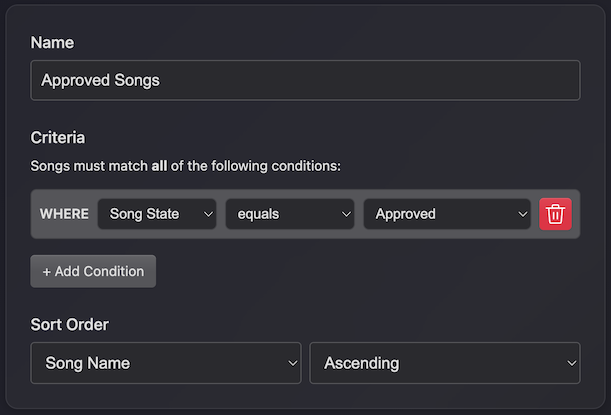
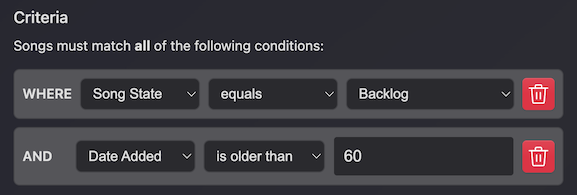
You can delete these, change the criteria, or create your own by visiting the Auto Setlists tile in your band homepage. Here's a couple of quick examples to show how this can be useful - How about an automatically updating setlist that shows you songs that have been stuck in your backlog for more than two months:
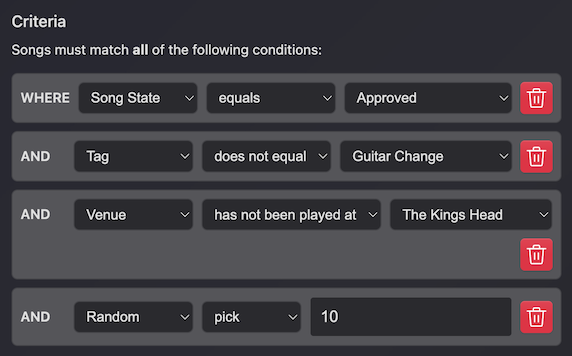
Or maybe you want to keep it fresh with some "easy wins" for an upcoming gig. You can select approved songs that don't require any changes (or match any other tags you use) that you haven't yet played at a venue:
Finding Auto Setlists
There are two places to look:
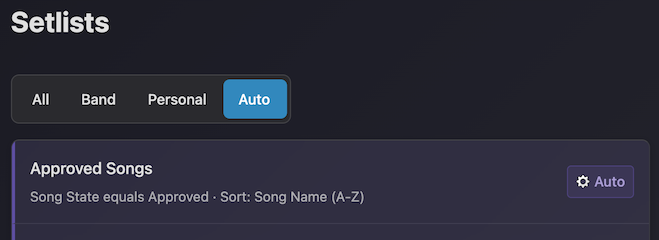
- The Setlists page has an Auto pill alongside All, Band, and Personal. Click it to see every auto setlist for the band, and click any one of them to open the live, populated view. Auto setlists also appear with a purple "cog" badge and highlight so you can spot them at a glance.
- The band homepage has an Auto Setlists tile in the Song Library section (just after Rehearsal Room). That's the admin view where you create, edit, and delete auto setlist definitions.
How the criteria work
Each Auto Setlist is made up of one or more filter rows, all chained together with logical AND. So a setlist defined as "State equals Approved AND Tag equals #encore" will only show songs that match both conditions.
Below the filters, you pick how the matching songs should be sorted.
So, in summary: filters narrow the list, sort orders it, and the result is what you see when you open the setlist.
Available criteria
Each filter row has three parts: the field you're filtering on, the operator, and the value. The operators available change depending on the field you pick.
Song State
Match songs by their workflow state (Backlog, Practicing, Approved, Retired, etc.).
- equals / does not equal
Useful for things like "everything we've approved" or "anything that isn't retired".
Tag
Match songs by one of your band's tags.
- equals / does not equal
Combine multiple tag filters with AND to build up specific selections, e.g. "tagged #covers AND not tagged #drop-tuning".
Artist Name
Match songs by the artist field.
- equals / does not equal / contains / does not contain
Comparisons are case-insensitive. Contains is handy for grouping a prolific artist together without worrying about exact spelling so "contains Bowie" will catch "David Bowie" as well as "Bowie & Queen" (Yeah, you know the song. Can tell I'm a Bass player 😉).
Date Added
Match songs by how long ago they were added to the library.
- is older than / is newer than (a number of days)
This is what powers the "stuck in the backlog" example above. Pair it with a Song State filter to find songs that have been sitting in a particular state for a while.
Venue
Match songs by whether they've been played at one of your band's venues (linked via events).
- has been played at / has not been played at
Songs count as "played at" a venue if they appear in any setlist attached to an event at that venue, including upcoming events. Great for building "fresh material for tonight's gig" -type lists.
Random Pick
Pick a number of songs at random from whatever the other filters left behind.
- pick (a number of songs)
Unlike the other criteria, Random Pick doesn't narrow the list down to songs that "match" something, it samples from the result. Chain it with other filters to do things like "pick 5 random songs where state is Practicing" for a daily warmup list, or "pick 10 random songs tagged #covers" to keep rehearsals varied. The selection reshuffles every time you open the setlist, so you'll get a different set of songs each visit.
Select
Only select a given number of matching songs that match the criteria. Applied after sorting, so can be used to build queries like "approved songs, sorted by descending score, select 10" to give a top-10 list of most popular songs.
- limit to (a number of songs)
Sort options
You can sort matching songs by:
- Song Name (alphabetical)
- Date Added (newest or oldest first)
- Score (the band's vote score on the song)
- Random - shuffles the matching songs into a different order on every visit
For everything except Random you also pick Ascending or Descending. Random ignores the direction (because there's no meaningful "up" or "down" for a random shuffle).
What you can (and can't) do with an Auto Setlist
When you open an Auto Setlist you'll get the usual setlist view, with one fixed set called "Auto Set 1" holding the matched songs. A few buttons behave differently though, because the contents are generated on the fly:
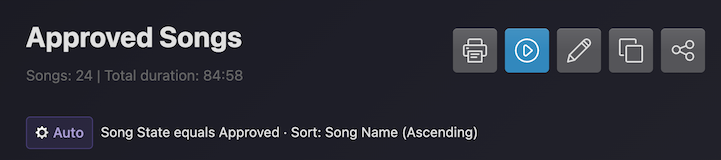
- Print to PDF - works exactly like a regular setlist.
- Mini player - works exactly like a regular setlist, if you have audio attached to any tracks it will pop open a player interface so you can use the setlist as a music playlist for practicing.
- Edit criteria (admins only) - opens the query builder to change the filters or sort.
- Clone - turn the current snapshot into a regular editable setlist (band-wide or personal). This can be useful if you want to use one of the auto setlists as a starting point to then drag songs around or split into different sets.
- Share - generate a public link, same as any other setlist. The shared view is also updated automatically, so always reflects the latest matching songs.
What you can't do is edit the songs directly, drag and drop to reorder, add extra sets, or delete the setlist contents. The whole point is that the list is defined by its criteria, not by a fixed list of songs. If you need to make manual tweaks, clone it first.
Editing
As the auto setlists are generated dynamically, you can't edit them directly or drag & drop to change the order of the songs. You can however clone the setlist (either as a personal setlist, or band-wide) which turns it into a regular editable Setlist.